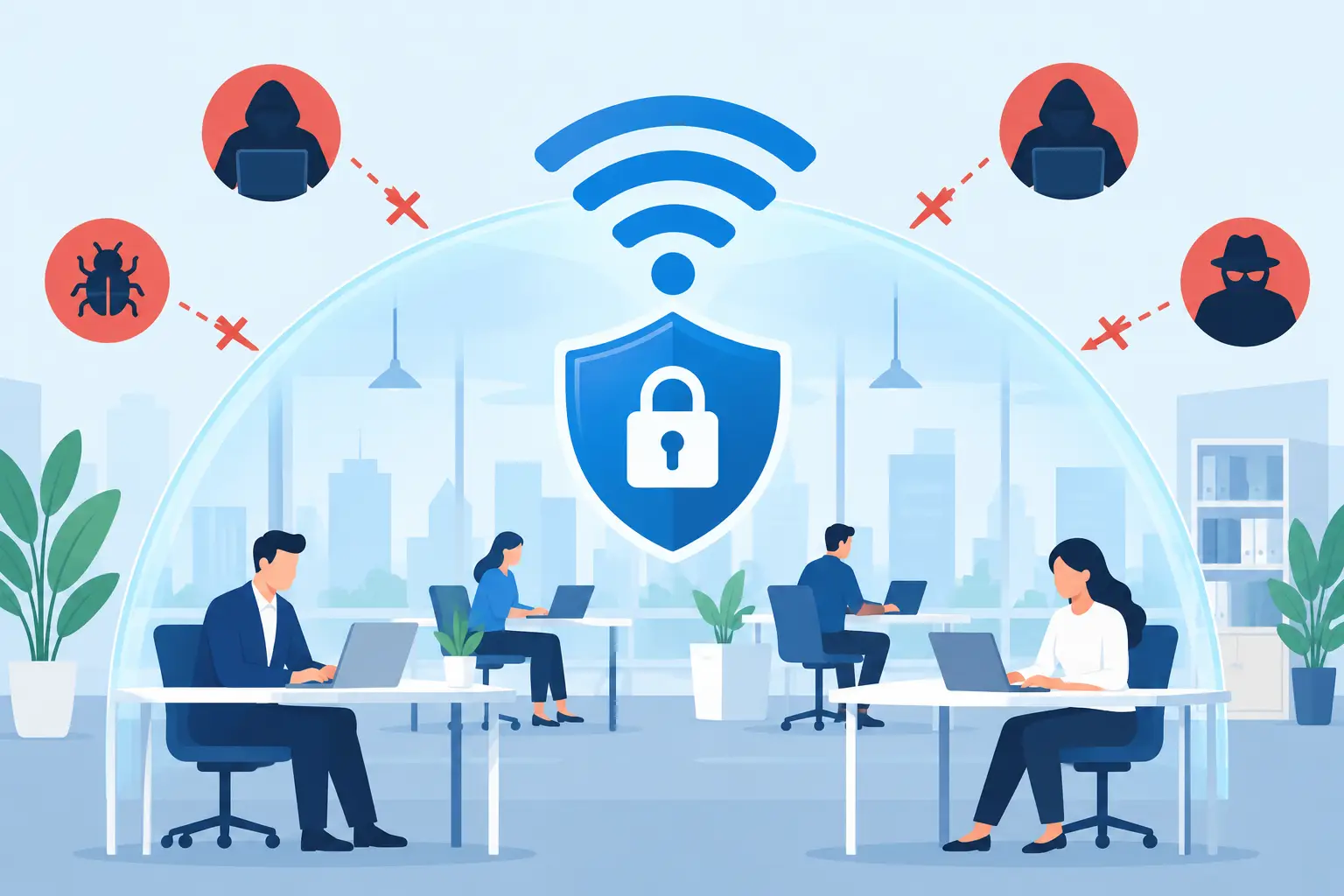
A weak office WiFi network can give an attacker a path to far more than internet access. It can expose employee credentials, connected devices, cloud applications, customer information, and even business phone systems. Knowing how to protect office WiFi means treating the wireless network as a business system that requires the same attention as computers, Microsoft 365 accounts, and data backups.
For small and midsize businesses, the goal is not to turn every employee into a network engineer. It is to put the right controls in place, keep them maintained, and make sure someone is accountable when a security concern appears.
Start With the Router and Firewall
Your wireless access points are only as secure as the network equipment behind them. Consumer-grade routers may be acceptable for a small home, but they are often a poor fit for an office handling client data, payment information, medical records, financial documents, or proprietary files.
Business-class firewalls and managed wireless access points provide better control over who can connect, what they can reach, and how suspicious activity is handled. They also make it easier to apply security updates, separate traffic, and review network events when something goes wrong.
The administrative login for every router, firewall, switch, and access point should be changed from the factory default. Use a long, unique password stored in an approved password manager. Administrative access should be limited to the people or IT provider responsible for the network. An old vendor account or a former employee's credentials should never remain active simply because nobody remembered they existed.
Remote administration deserves particular attention. If equipment can be managed from the internet, it should be protected with multifactor authentication and restricted access. In many cases, remote management should be available only through a secure business VPN or a managed support method.
Use Modern Encryption and a Strong WiFi Password
The encryption setting on your wireless network determines how information is protected as it travels between devices and the access point. WPA3 is the preferred standard when your equipment and devices support it. WPA2 with AES encryption remains widely used and can be appropriate for older business equipment, but avoid outdated options such as WEP, WPA, or WPA2 with TKIP.
A WiFi password is not a casual office convenience. It is a key to your network. Make it long, unique, and difficult to guess. Avoid using the company name, address, phone number, sports team, or a predictable seasonal variation. A passphrase made from several unrelated words is easier to manage than a short, complicated password and is usually much stronger.
Change the password whenever an employee with network access leaves, a contractor no longer needs access, or you believe the password may have been shared outside the organization. Changing it on a fixed schedule can help in some environments, but frequent changes may encourage employees to write passwords down. The better approach depends on your access controls and how many people know the password.
Separate Business, Guest, and Device Networks
One WiFi network for everyone is easy to set up and difficult to defend. Visitors, personal phones, employee laptops, printers, cameras, conference room displays, and business systems should not all have the same level of access.
A properly designed office network separates traffic into distinct networks or virtual LANs. Employees use a secured business network for work systems. Guests use an internet-only guest network. Internet-connected devices such as cameras, thermostats, printers, and smart TVs are placed on a separate network with only the access they need.
This separation limits the damage from a compromised device. If a visitor's laptop is infected or an aging printer has a security flaw, it should not be able to browse file shares, reach accounting systems, or communicate directly with employee workstations.
Guest WiFi should have its own password and should not provide access to internal systems. In some offices, a guest network can use a simple sign-in process and automatically disconnect devices after a defined period. That is helpful in reception areas, hospitality settings, real estate offices, and any location with frequent visitors.
Keep Network Equipment Updated
Network equipment is often installed, configured, and forgotten. That creates risk because routers, firewalls, and access points run software that can contain vulnerabilities. Manufacturers release firmware updates to correct security issues, improve stability, and support newer protections.
Create an inventory of your network equipment, including model numbers, physical locations, support status, and who manages each device. Then establish a process to review and apply updates. Some updates can be scheduled outside business hours to reduce disruption, while urgent security updates may need faster action.
There is a trade-off here. Updating without planning can interrupt internet access or affect older devices. Waiting indefinitely exposes the business to known threats. A managed IT provider can test, schedule, and monitor updates so security improvements do not become an unexpected business interruption.
Control Which Devices Can Connect
Every device on the office WiFi creates another possible entry point. A current inventory helps you identify unfamiliar devices quickly and remove access that is no longer needed.
For employee devices, use individual authentication where practical rather than relying only on one shared password. Business-grade WiFi platforms can support user-based access tied to an employee's identity. This takes more initial setup, but it is easier to revoke one person's access without changing the password for the entire office.
Company laptops and mobile devices should also be managed with basic security standards: supported operating systems, screen locks, disk encryption, endpoint protection, and automatic updates. Secure WiFi cannot fully protect a device that is already compromised.
For organizations with bring-your-own-device policies, set clear expectations. Personal devices should generally use a separate network unless there is a defined business need and appropriate device management in place. The convenience of letting every phone join the internal network is rarely worth the additional exposure.
Turn Off Features You Do Not Need
Convenience features can weaken a network when they are left enabled without a clear purpose. Wi-Fi Protected Setup, commonly called WPS, is a common example. It was designed to simplify device connections, but it can introduce unnecessary risk and should usually be disabled in a business environment.
Also review whether you need peer-to-peer device discovery, unrestricted device-to-device communication, open USB sharing, or remote administration from any internet address. The guiding principle is simple: if a feature does not support a business need, turn it off.
Hiding the WiFi network name, or SSID, is not meaningful security by itself. It may reduce casual visibility, but determined attackers can still find it. Use strong encryption, access controls, and network segmentation instead of relying on obscurity.
Monitor the Network and Respond Quickly
Protection is not a one-time configuration. Someone should review alerts, check for unfamiliar devices, confirm that backups and security tools are functioning, and investigate unusual activity. A sudden spike in traffic, repeated failed login attempts, or an unknown device connecting after hours can signal a problem that deserves attention.
Logging matters after an incident as well. If a suspicious connection or malware event occurs, network logs can help determine what happened, which systems were involved, and whether additional action is needed. Without visibility, a business may be left guessing.
For many Southwest Florida businesses, continuous monitoring is difficult to manage internally while also serving clients, processing payroll, coordinating field teams, or running daily operations. This is where outsourced IT management provides practical value: a defined team is responsible for maintenance, oversight, and response instead of leaving network security as an occasional office task.
Train Employees on Everyday WiFi Risks
Employees do not need to understand every wireless protocol, but they should understand a few rules. They should not share the business WiFi password with visitors, connect unknown devices, approve unexpected login prompts, or use an unprotected public network for sensitive work without approved protections.
Phishing remains closely connected to WiFi security because stolen credentials can give attackers a way into cloud accounts and network resources. Multifactor authentication, security awareness training, and clear reporting procedures reduce the chance that one deceptive email turns into a larger business incident.
Employees should also know whom to contact if the WiFi behaves strangely, a device connects without explanation, or they suspect a password was exposed. Fast reporting gives your IT team a better chance to contain an issue before it affects operations.
How to Protect Office WiFi Over Time
The most effective approach to how to protect office WiFi is to make it part of ongoing IT management, not a project completed when new equipment is installed. Networks change as employees join and leave, offices expand, devices are replaced, and new cloud or phone services are added.
Review wireless security after major business changes, including an office move, acquisition, network upgrade, or introduction of new connected equipment. Confirm that former employees and vendors no longer have access, guest WiFi remains separate, equipment is supported, and security settings still match the way your team works.
Prisca Nova helps businesses across Bonita Springs, Naples, Fort Myers, and Southwest Florida keep technology dependable and accountable through proactive management, cybersecurity support, and a one-hour response commitment. The right wireless protections should let your team work without thinking about the network - while giving your business a clear plan when something needs attention.