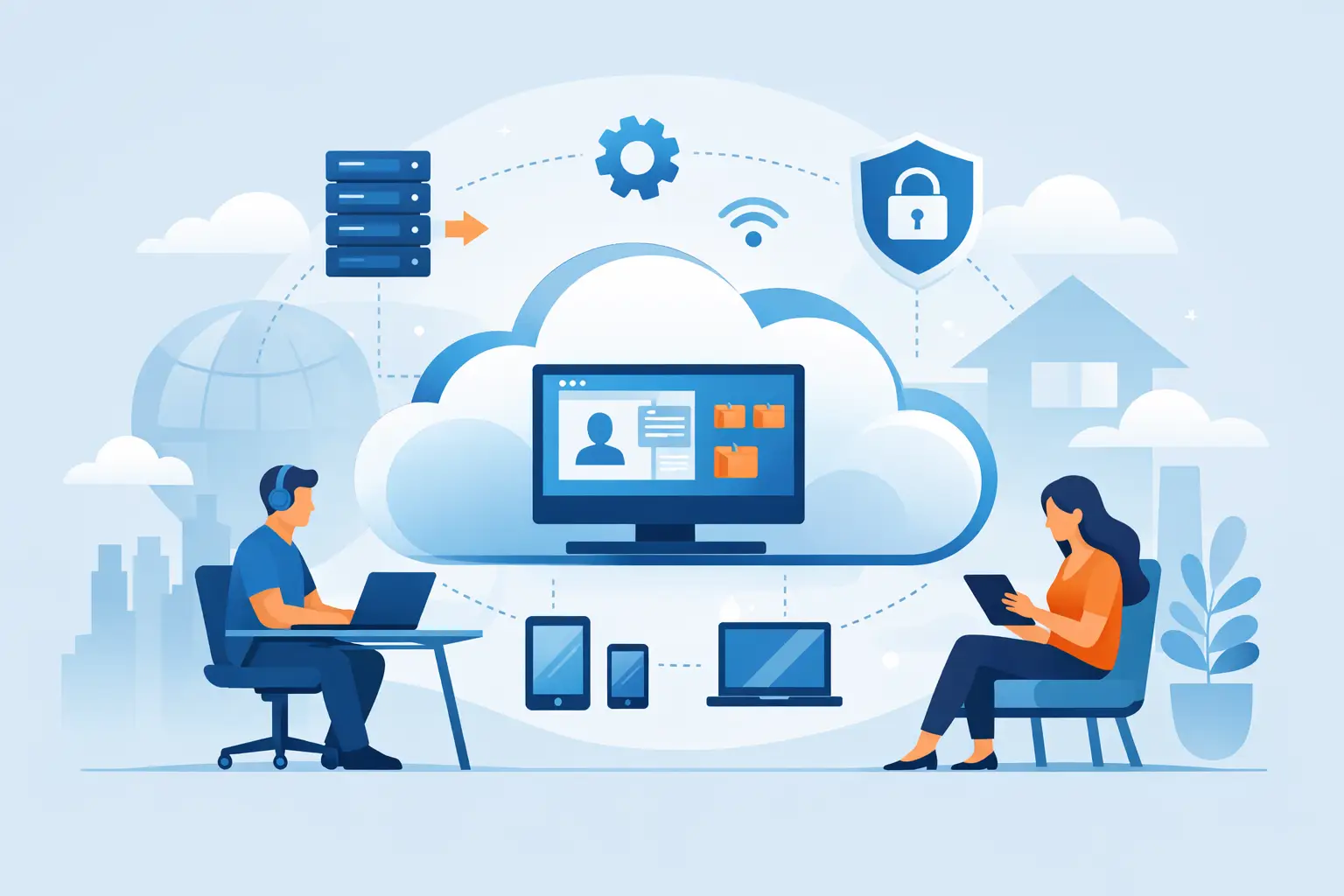
A staff member’s laptop fails at 8:15 a.m. before a client meeting. For a traditional remote setup, that can mean a scramble to locate files, configure a replacement device, restore applications, and keep the employee productive. With a cloud desktop for remote employees, the employee can often sign in from another approved device and return to the same business workspace without waiting for a full computer rebuild.
That difference matters for small and midsize businesses across Southwest Florida. Remote work is no longer limited to occasional travel or storm preparation. Employees may work from home, client sites, temporary offices, or different locations throughout Naples, Bonita Springs, and Fort Myers. The question is not simply whether people can connect remotely. It is whether they can work securely, consistently, and with support when something goes wrong.
What a cloud desktop changes for remote work
A cloud desktop is a business computer environment hosted in the cloud rather than tied entirely to one physical laptop or desktop. Employees access their assigned desktop, applications, and files through a secure connection. The experience is designed to feel familiar: they log in, open the tools they use every day, and work in their own configured environment.
For the business, the key advantage is centralization. Applications, user settings, and business data can be managed in a controlled cloud environment instead of being spread across employee devices. If an employee replaces a laptop, changes locations, or needs temporary access from another approved computer, their working environment does not need to be recreated from scratch.
This is especially useful for organizations that rely on line-of-business software, shared files, Microsoft 365, accounting platforms, estimating applications, or customer records. Rather than asking every employee device to carry the full burden of security and configuration, IT can manage the desktop experience from a central point.
A cloud desktop does not eliminate the need for employee devices, internet service, or good security practices. It does reduce how much business continuity depends on any one laptop being available and functioning properly.
Where cloud desktops make practical sense
A cloud desktop for remote employees is not only for large companies with a fully distributed workforce. It can be a practical option for businesses with a small number of remote employees, seasonal staff, traveling executives, or teams that need secure access to applications outside the office.
Professional service firms may use cloud desktops to give staff controlled access to client files and specialized software from home. Construction and real estate organizations may benefit when employees move between job sites, sales offices, and client locations. Healthcare-adjacent and financial offices can use centralized desktops to better manage access to sensitive information. Hospitality and operations teams may use them to support managers who need flexibility without giving up standardization.
The strongest use case is often a business that has outgrown informal remote access. If employees are emailing documents to themselves, saving work on personal computers, using inconsistent versions of software, or calling for help each time they switch devices, the current arrangement may be creating avoidable risk and downtime.
Cloud desktops can also support business continuity planning. During a hurricane, office closure, local outage, or building access problem, employees may be able to continue working from approved alternate locations. That capability depends on reliable internet access and proper planning, but it can provide a meaningful layer of resilience.
Security benefits depend on proper management
Security is a major reason businesses consider cloud desktops, but the platform alone is not a complete cybersecurity strategy. A poorly configured cloud desktop can still expose data, accounts, and systems. The value comes from pairing the environment with ongoing management and clear security controls.
With a properly managed cloud desktop, sensitive business information can remain in the cloud environment instead of being routinely stored across multiple employee laptops. User access can be assigned by role, removed promptly when an employee leaves, and protected with multifactor authentication. IT teams can also apply consistent updates, monitor account activity, and maintain standard application configurations.
Those controls can reduce the impact of a lost or stolen device. If a laptop disappears from a car, hotel room, or home office, the business has a clearer path to disable access and protect the user account. That is very different from discovering that the device held local copies of files, saved passwords, and unencrypted data.
Still, businesses should ask practical questions before assuming a cloud desktop meets every compliance or security need. Can users copy information to local devices? Are printing and USB access limited where appropriate? How are backups handled? What happens if a user’s credentials are compromised? The answers should align with the organization’s data, workflows, and industry obligations.
Planning the employee experience
The best cloud desktop project starts with the work employees actually perform. A standard office user who works primarily in email, web applications, Microsoft 365, and documents has different requirements than a designer, engineer, or employee using graphics-heavy software. Internet quality, monitor setup, printers, scanners, and mobile access also affect the daily experience.
Before deployment, inventory the applications employees need, identify where data lives, and confirm which users should have access. It is often wise to begin with a small group, such as remote administrators, traveling managers, or a department with a clear need for secure access. A pilot reveals workflow issues before the business moves a larger group.
Training should be straightforward. Employees need to know how to sign in securely, what device types are approved, where files should be saved, and who to contact when access is interrupted. Clear instructions matter because remote employees cannot simply walk down the hall when a printer, password, or application issue appears.
Amazon WorkSpaces is one cloud desktop option that can provide this type of managed virtual desktop environment. The right platform and configuration depend on the business’s software, security needs, user count, and budget. The goal is not to adopt cloud technology for its own sake. It is to provide employees with a dependable workspace that is easier to support and protect.
Cost control is more than a monthly desktop fee
A cloud desktop has a recurring cost, so business leaders should compare it against the full cost of the current approach. That includes laptop replacements, software licensing, setup time, remote troubleshooting, security tools, employee downtime, and the risk of unplanned recovery work after a device failure.
For some organizations, cloud desktops can make technology spending more predictable because user environments, support, and access are centrally managed. For others, a hybrid approach is more sensible. A business may keep traditional desktops for office-based staff while providing cloud desktops only to remote workers, contractors, or employees who handle sensitive applications.
The answer depends on how often employees work remotely and how costly disruption would be. A company with a few occasional remote workers may be well served by secure laptops and Microsoft 365. A business with frequent remote access needs, compliance concerns, or complicated applications may gain more value from a managed cloud desktop model.
Flat-rate managed IT support can further reduce surprises by giving the business a consistent resource for monitoring, administration, user support, and vendor coordination. Rather than treating every access problem as a separate emergency, the organization has an accountable support process behind the environment.
Questions to ask about a cloud desktop for remote employees
Before committing to a cloud desktop for remote employees, focus on operational fit. Ask whether your internet connections can support the users who need access at the same time. Confirm whether critical software is compatible, whether users need local peripherals, and whether employees regularly work in areas with unreliable connectivity.
You should also define support expectations. If a remote employee cannot sign in before a customer appointment, who takes the call? How quickly will the issue be acknowledged? Can the provider support the employee’s device, desktop environment, Microsoft 365 account, and network access without passing responsibility among vendors?
For Southwest Florida businesses, local accountability can make a meaningful difference. Remote management handles many issues quickly, while on-site availability remains valuable for office equipment, network problems, onboarding, and planning. Prisca Nova combines managed cloud solutions with local support, flat-rate pricing, and a one-hour response commitment so businesses have a clear path for resolving technology issues.
A cloud desktop should make remote work feel less fragile, not more complicated. When it is designed around your applications, users, security requirements, and support needs, it gives employees a consistent place to work and gives leadership more confidence that a single device problem will not stop the day.