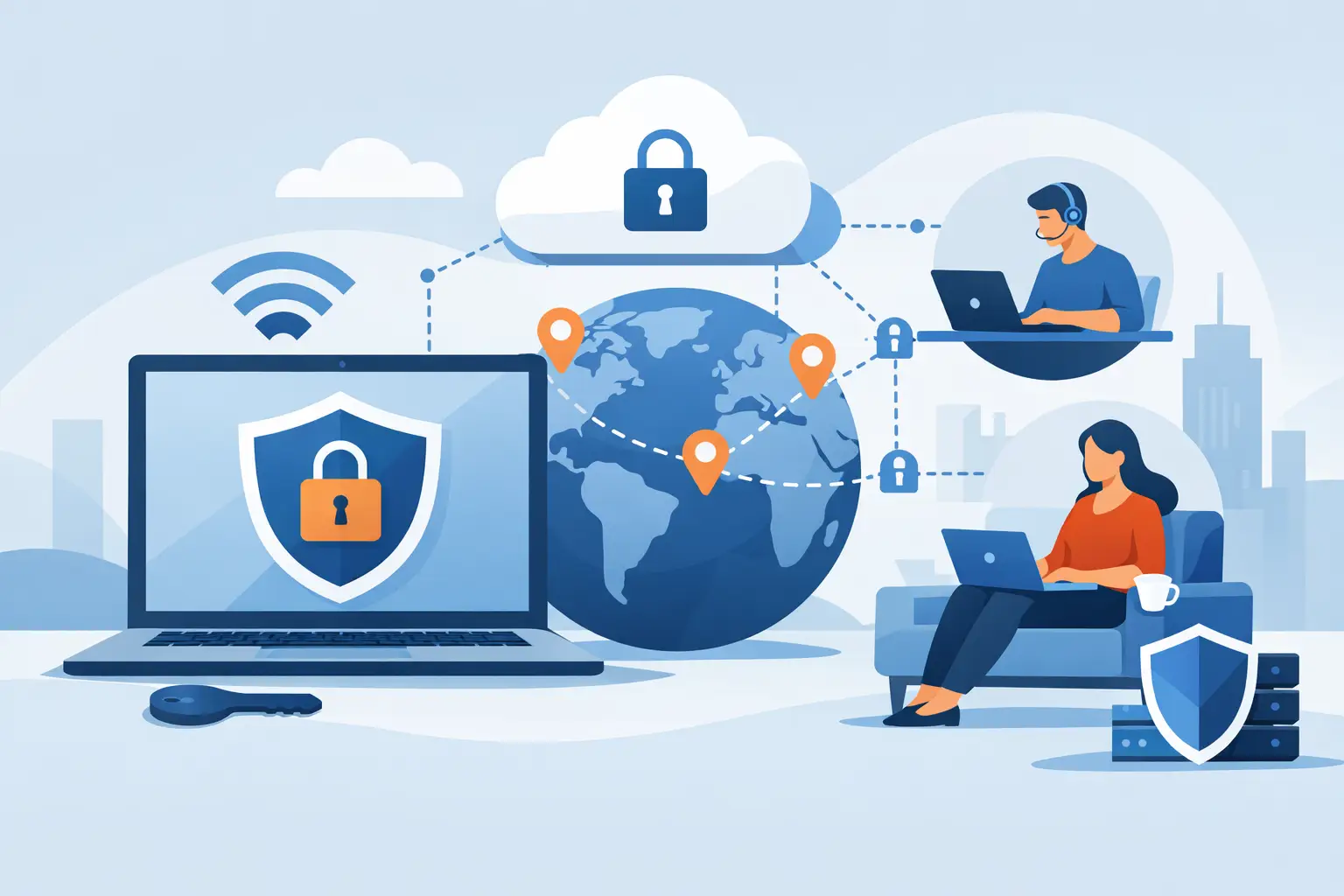
A staff member working from home, a project manager reviewing plans at a job site, and an office relocating temporarily after a storm all need the same thing: secure remote access for employees that does not put company data, client records, or daily operations at risk. The challenge is not simply getting people connected. It is giving the right people access to the right systems, verifying who they are, and maintaining control when devices and locations change.
For small and midsize businesses, remote access is no longer limited to occasional travel. Microsoft 365 files, line-of-business software, cloud desktops, VoIP phones, and shared documents allow work to continue outside the office. That flexibility is valuable, but it creates a wider security perimeter. A weak password, unmanaged laptop, or poorly configured remote connection can become an entry point for ransomware, account compromise, and costly downtime.
Why Remote Access Needs More Than a Password
A username and password alone are not enough protection for business systems. Passwords are reused, guessed, stolen through phishing emails, and exposed in third-party data breaches. If a criminal obtains valid credentials, they may be able to sign in from anywhere and appear to be a legitimate employee.
Multi-factor authentication changes that equation. It requires another form of verification, such as an authenticator app approval or security key, before a user can access email, cloud applications, or remote desktops. It does not eliminate every threat, but it stops many common account-takeover attempts before they reach your systems.
The goal is also to avoid treating every user and device the same. An accountant may need access to financial systems that a temporary employee does not. A manager may need cloud files from a tablet, while an employee handling protected client information may need to use a managed company computer. Access should reflect each employee's role and the sensitivity of the information involved.
The Building Blocks of Secure Remote Access for Employees
Reliable protection comes from several controls working together. No single tool can compensate for weak account management, unpatched devices, or employees who have not been trained to recognize suspicious activity.
Identity verification that is difficult to bypass
Multi-factor authentication should be standard for Microsoft 365, cloud platforms, remote desktop environments, and administrative accounts. Where available, conditional access policies can add useful guardrails. For example, a sign-in attempt from an unfamiliar country, an unapproved device, or an unusually risky session can be blocked or challenged for additional verification.
Administrative access deserves even tighter oversight. IT administrators and outside vendors often have elevated permissions, which makes their accounts especially attractive targets. Use separate administrator accounts, multi-factor authentication, and limited permissions rather than allowing broad access by default.
Managed devices with current protection
A secure connection is only as trustworthy as the device on the other end. Company-issued laptops should receive operating system updates, endpoint security software, disk encryption, and centralized monitoring. Lost or stolen devices should be capable of being locked or wiped remotely when appropriate.
Personal devices present a trade-off. Allowing employees to use their own computers can reduce upfront hardware costs and offer convenience, but it also limits your visibility and control. For lower-risk tasks, browser-based access to approved cloud applications may be acceptable. For systems containing financial data, health-related information, customer records, or proprietary documents, a managed device or cloud desktop is usually the safer choice.
Controlled access to business applications and data
Many organizations still rely on an office server, shared drive, or specialized desktop application. Remote desktop technology can provide access to these systems, but direct exposure of remote desktop services to the public internet is a serious risk. Attackers routinely scan for open remote access services and attempt to exploit weak credentials or unpatched software.
A properly configured virtual private network, remote desktop gateway, or cloud-hosted workspace provides a more controlled path. Amazon WorkSpaces, for example, can keep the business desktop and its data within a managed cloud environment instead of storing sensitive files on a home computer. The best option depends on the applications you use, the size of your team, regulatory requirements, and how frequently employees work off-site.
Protected home and public networks
Employees cannot control every network they use, especially when traveling. Public Wi-Fi at hotels, airports, and coffee shops should never be treated as a trusted business network. A secured remote connection, current device protection, and employee awareness reduce the risk of traffic interception and malicious network activity.
Home offices deserve attention, too. Employees should use a password-protected home Wi-Fi network, keep their internet router updated, and avoid sharing business devices with family members. These are simple practices, but they close gaps that frequently go unnoticed.
Put Clear Rules Around Access
Technology works best when employees understand what is expected. A practical remote-work policy should state which applications may be used, whether personal devices are allowed, how employees should report a lost device or suspicious login, and what information may be stored locally.
It should also address departure and role changes. When an employee leaves, access to email, cloud storage, phone applications, remote desktops, and shared passwords should be removed promptly. Delayed offboarding is one of the most preventable access risks in a growing business.
Training should be short, recurring, and tied to situations employees actually encounter. A polished email asking someone to approve a Microsoft 365 sign-in, reset a password, or review an invoice can be convincing. Employees need to know that unexpected authentication prompts, urgent payment requests, and unfamiliar login pages deserve verification through a separate channel.
Monitor Remote Activity Without Creating Friction
Security should support work, not turn every login into a help desk event. The right level of control depends on the business. A small professional office with a handful of remote employees may need multi-factor authentication, managed laptops, secure backups, and monitored Microsoft 365 accounts. A healthcare-adjacent practice or financial firm may need stricter device rules, more detailed access logs, and tighter data controls.
What should not vary is visibility. Your IT team should be able to identify unsuccessful login attempts, suspicious locations, malware detections, missing security updates, and devices that fall out of compliance. Monitoring gives you a chance to respond before a minor issue becomes a business interruption.
Backups remain part of the remote-access conversation as well. Secure access reduces the likelihood of a breach, but it cannot guarantee that every account mistake, ransomware event, or hardware failure will be avoided. Tested backups and a documented recovery process help ensure employees can resume work if systems become unavailable.
Avoid the Common Shortcuts
Businesses often create risk while trying to solve an immediate access problem. Sharing one account among several employees eliminates accountability. Sending sensitive files through personal email or consumer file-sharing tools removes control over where data is stored. Leaving former employees active in Microsoft 365 creates unnecessary exposure. Opening remote desktop ports to the internet may appear convenient, but it can invite automated attacks.
Another common issue is relying on a VPN as the entire security plan. A VPN can be useful, but it does not replace multi-factor authentication, endpoint protection, patching, access controls, and monitoring. It protects a connection, not every decision made by the person using it.
Make Remote Access Part of Business Continuity
In Southwest Florida, business continuity is not theoretical. Severe weather, office disruptions, travel, and vendor outages can force employees to work from alternate locations with little notice. Remote access should be tested before an emergency, not improvised during one.
A useful test is simple: Can each critical employee securely reach the applications, files, and communications tools they need from outside the office? Can they do so without depending on one person who knows a password or one computer that must remain powered on? If the answer is uncertain, the remote-work plan needs attention.
Prisca Nova helps businesses across Bonita Springs, Naples, Fort Myers, and Southwest Florida manage remote access as part of a broader approach to cybersecurity, Microsoft 365, cloud solutions, and day-to-day IT support. With flat-rate technology management and a one-hour response commitment, the focus is on making security and continuity more predictable for the business.
The most useful remote-access setup is the one employees can follow consistently and leadership can trust when the office is unavailable. Start by identifying the systems your team cannot afford to lose access to, then make sure the protections around them are just as dependable.