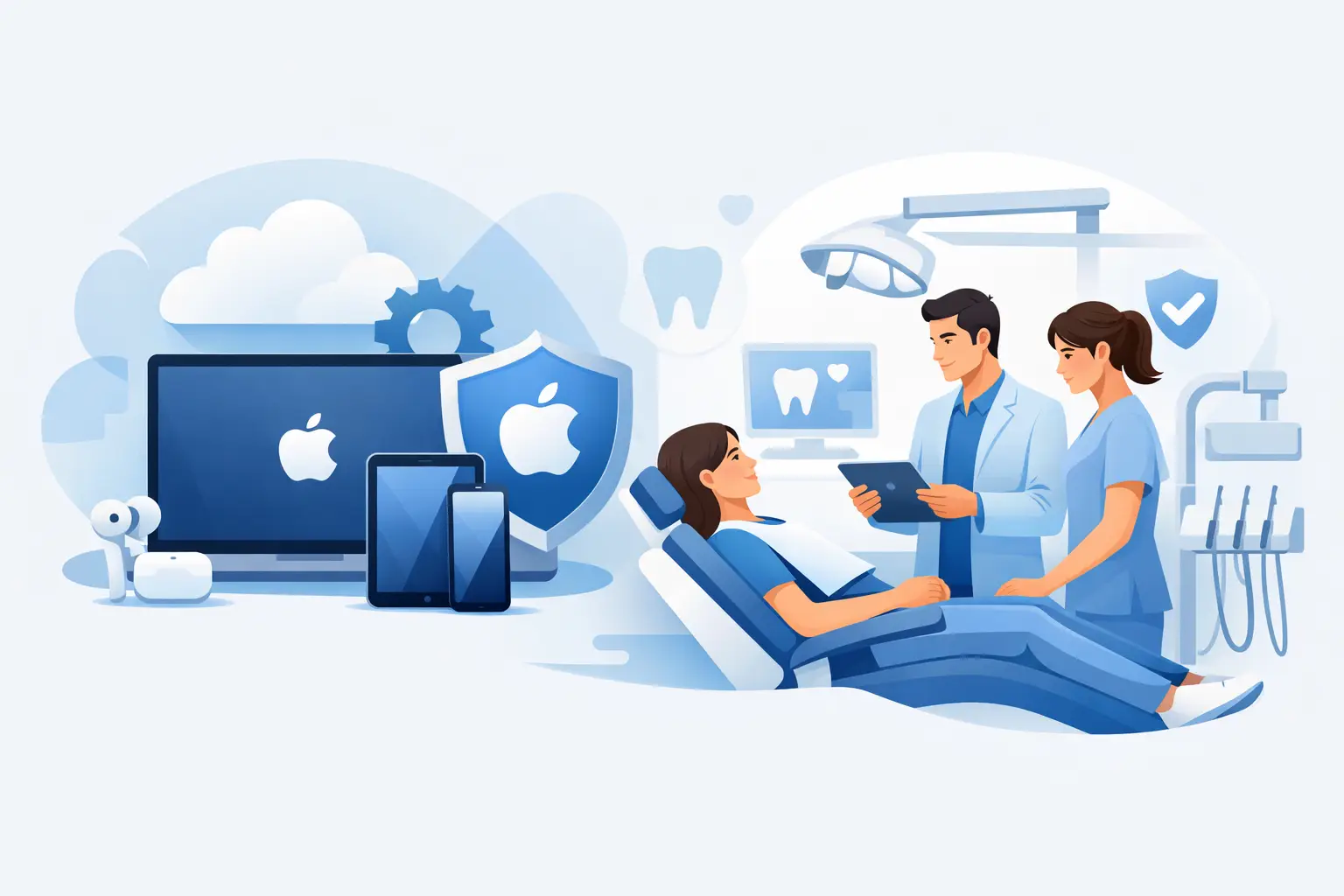
A Mac that cannot open a patient image, an iPad that will not connect to Wi-Fi, or a front-desk workstation that freezes during check-in is not a minor inconvenience. It can delay care, create frustration in the waiting room, and put pressure on a team that already has a full schedule. Apple IT support for a dental practice should protect the workday, not simply respond after it has already been disrupted.
Dental offices often use Apple devices because they are familiar, reliable, and well suited to patient-facing workflows. The challenge is that a MacBook, iMac, iPad, or iPhone is only one part of a larger operating environment. It must work consistently with practice management software, digital imaging systems, cloud applications, printers, scanners, phone systems, secure Wi-Fi, and protected patient information.
For a dental practice, the right IT support model combines Apple expertise with proactive management of the entire technology environment.
Why Apple IT Support Is Different in a Dental Practice
A general computer repair approach is rarely enough for a busy practice. Dental teams need technology that supports a specific sequence of work: confirming appointments, checking patients in, accessing charts, capturing images, coordinating treatment, processing payments, and communicating after a visit. A problem in one system can affect every step that follows.
Apple devices also need to coexist with systems that may have different requirements. Your imaging platform may depend on a particular macOS version, browser setting, network connection, or storage location. A new macOS update may improve security but cause compatibility concerns with an older clinical application. That does not mean updates should be ignored. It means they should be planned, tested where appropriate, and deployed with the practice schedule in mind.
This is where Apple IT support for dental practices becomes an operational service rather than a device-by-device fix. The goal is to maintain compatibility, security, and predictable performance across the office.
Start With a Complete Technology Picture
Before improving a dental office's technology, support providers need to understand what is connected and who depends on it. That includes more than desktops and laptops. It includes front-office iPads, operatories, imaging workstations, network switches, wireless access points, printers, phones, backup systems, cloud accounts, and vendor-managed applications.
A clear inventory helps answer practical questions. Which devices are approaching replacement age? Which Macs hold local files that should be protected elsewhere? Who has administrative access to Apple IDs, Microsoft 365, practice software, or the internet service account? Are personal devices connecting to the same network as clinical equipment?
Without this visibility, practices tend to make decisions during an emergency. A managed IT partner helps turn those decisions into a plan, including replacement timing, software licensing, account ownership, and backup requirements. That is especially valuable for offices with no internal IT department.
Keep Macs, iPads, and Accounts Managed
Apple hardware is generally straightforward to use, but business ownership and access management can become complicated quickly. A practice should not depend on one employee's personal Apple ID to manage a shared iPad, receive application purchases, or recover a device after someone leaves.
Business-managed Apple accounts and device management policies give the practice more control. Devices can be configured consistently, encrypted, updated on a schedule, and remotely secured if they are lost or stolen. The right setup can also reduce the time required to prepare a new Mac for a hygienist, dentist, or front-office employee.
The level of management depends on the office. A practice with a few fixed iMacs may need a lighter approach than a multi-location group with mobile iPads and staff working from several sites. Either way, the ownership of devices, accounts, and recovery information should remain with the practice, not an individual employee or a departing vendor.
Updates Need a Schedule, Not a Guess
Apple software updates are an important security control, but dental applications do not always support the newest operating system immediately. Installing a major update on every computer the day it is released can introduce avoidable disruption.
A better approach is to monitor vendor compatibility, apply urgent security updates promptly, and schedule larger upgrades after confirming key systems will continue to function. Updates should be completed outside patient hours whenever possible, with a rollback or recovery plan if an unexpected issue appears.
Protect Patient Information at Every Access Point
Dental practices handle information that needs careful protection. Cybersecurity is not limited to an antivirus application on a Mac. It includes the way users sign in, how devices connect to the network, what happens when someone clicks a convincing phishing email, and whether the practice can recover quickly after an incident.
Multi-factor authentication should protect email, cloud accounts, remote access, and other critical systems. Strong passwords and a password management process reduce the risk of reused credentials. Endpoint protection, security monitoring, and prompt patching help address known threats before they become a business interruption.
Network design matters just as much. Patient Wi-Fi should be separate from the network used by office devices and clinical technology. Equipment that requires specialized connectivity should be reviewed carefully so it receives the access it needs without unnecessarily exposing the rest of the environment. There is no single configuration for every office, but a flat, unmanaged network is rarely the right answer.
Staff training also deserves attention. A front-desk employee may receive a fake message about an overdue invoice, a voicemail notification, or a password reset. A short, practical training program gives employees a way to recognize suspicious requests and report them without embarrassment or delay.
Build Backups Around Recovery, Not Storage
Many practices assume files are protected because they are stored in the cloud or copied to an external drive. Those measures can help, but they do not automatically provide a full recovery plan.
A useful backup strategy identifies what must be restored first after ransomware, accidental deletion, hardware failure, or a local outage. That may include practice data, financial documents, shared files, system configurations, and key communications. Backups should be protected from unauthorized changes, monitored for failures, and tested periodically. A backup that has never been tested is an assumption, not a recovery plan.
Recovery planning should also consider how the practice will operate during an interruption. Can staff access appointment information from another secure location? Is there a documented contact list for software, imaging, internet, and phone vendors? Who has authority to make decisions if systems are unavailable? These questions are easier to address before a busy Monday morning.
Coordinate Vendors Instead of Passing Problems Around
Dental technology often involves several vendors: practice management software, imaging systems, payment processing, internet service, phone service, printers, and specialized equipment. When something fails, the office should not have to act as the translator between every provider.
A capable IT partner documents the environment, gathers the right details, and works with vendors to isolate the issue. If an imaging workstation cannot access a server, the cause could be the Mac, a software service, network permissions, storage, or vendor application settings. Fast resolution depends on checking the entire path rather than assuming the problem belongs to someone else.
For Southwest Florida practices, local accountability can make a meaningful difference. Remote support resolves many issues quickly, but some problems require an on-site visit, new equipment installation, cabling review, or direct coordination with office staff. Prisca Nova combines ongoing remote management with local support for businesses in Bonita Springs, Naples, Fort Myers, and surrounding communities, backed by a one-hour response commitment and predictable flat-rate pricing.
Choose Support That Fits the Practice Schedule
The best Apple IT support arrangement is not necessarily the one with the most tools. It is the one that matches the practice's size, systems, risks, and schedule. A single-provider office may prioritize dependable remote help, secure backups, and lifecycle planning. A larger practice may also need formal device management, network segmentation, multiple-location support, and detailed access controls.
Ask potential providers how they handle Apple updates, device enrollment, employee onboarding and offboarding, cybersecurity alerts, vendor coordination, and backup testing. Ask what happens when a critical issue occurs during patient hours. Clear answers reveal whether the provider is prepared to manage an environment or only respond to isolated tickets.
Your technology should give the dental team more time to focus on patients, not more systems to manage. When Apple devices, networks, security, backups, and vendors are professionally coordinated, the office can operate with fewer interruptions and greater confidence in the next scheduled day.